
How to Use the Box Builder
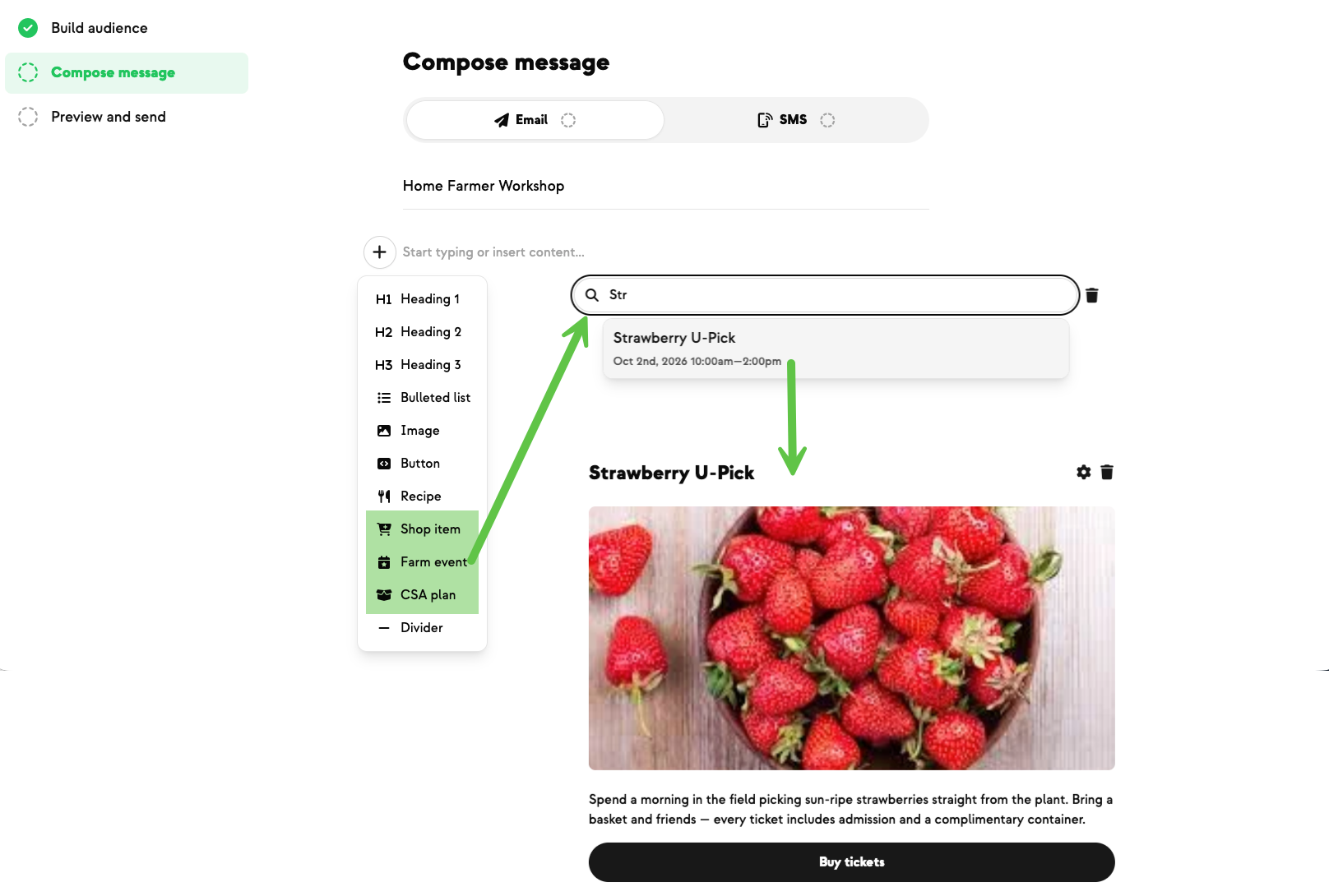
This short video walks you through the Box Builder in Farmhand — showing members what's being harvested, setting the default box on a customizable plan, hitting your target value, reusing box lists week to week, and what belongs in your shop instead. You can follow along:
- 0:00 What the Box Builder is for
- 0:35 Where to find the Box Builder
- 1:05 Order counts & target value tracking
- 1:30 Switching variants & publishing products
- 2:05 Publishing your default box
- 2:46 Over- and under-target alerts
- 3:26 Reusing a box you've already published
- 3:54 Inventory warnings & per-box quantities
- 4:46 Default box vs. what's in your shop
- 5:18 Unpublishing & republishing in bulk
Who the Box Builder is for
The Box Builder does two jobs:
- Customizable plans — it's where you set the default box every member starts with. The Newsletter Builder will point you here instead of letting you type the items in directly.
- Any plan, including Farmer's Choice — it's a place to show members what's being harvested. Add products as you pull them, and they'll flow into your newsletter automatically when you sit down to write it.
Either way, you're answering the same member question: what's coming in my box?
Where to find it
- Click the button in the Newsletter Builder that points you there, or
- From your dashboard, expand Fulfillment and click Box Builder.
If you're on Farmer's Choice, this is handy for starting your list days before the newsletter is ready — add your products here, and when you're ready to write, they'll already be on the boxes page.
Order counts & target value
On a customizable box you'll see tracking at the top: how many orders you have that week, and the target value of the box you're editing. As you add items, a progress bar fills toward that target so you can tell at a glance whether you're there.
Switch variants & publish products
- Variants — swap between a product's variants here. If you'd rather put Tomatoes by the Pound in customizable boxes than by the Each, you can change it in place.
- Quantities — adjust the amount of any item.
- Status — products must be published to go into customers' boxes. If you added something still in draft, you can flip it to Published right here.
Publish your default box
Publishing pushes these items into everyone's box and lets them begin shopping. Tooltips on this page — including on the dates — help you keep track of which week you're building for.
When you hit Publish, you'll get a reminder that this goes into every member's box and opens editing for them. Because the items have already been pushed out, you can't come back and edit the default box afterward. Once published, the edit actions disappear and you're left viewing your order count, target value, and item list.
Over- and under-target alerts
If you're well over or well under your target value, you'll see an additional alert on the publish confirmation. You can proceed past it if the box is intentional — or go back and fix it first.
Reuse a box you've already published
Once you've published one box, you can reuse it in your others. Click Start with items from another box list to see:
- Any other boxes for the same week.
- The same box published in a previous week.
Pick one and everything imports automatically.
Inventory warnings & per-box quantities
If the available inventory you've set doesn't cover the expected orders across both box sizes — say your corn only covers one — you'll get a warning. Either remove the product or edit your inventory, and the warning clears.
From here you can also give your large-box members more of something than your small-box members, or give the two sizes different products entirely.
Default box vs. what's in your shop
Use the Box Builder only for your default box — the items that land in everyone's cart and that they'll receive if they make no changes.
Anything you want members to be able to add to their box or swap in gets published from the Products page instead. In that context, published means the product is available in your shop.
Unpublish & republish in bulk
- To pull one product for the week, open its actions menu and click Unpublish.
- For several at once, tick the checkboxes, then use the bulk actions menu at the bottom → Change status → Draft.
- To bring products back into the shop, select them the same way and use bulk actions → Change status → Public.
New on Farmhand

Your farm is growing.
Your platform should keep up.
Our roadmap is built from farmer conversations, not corporate planning cycles. You ask. We build. You see it live.